
Subversion for Beginners

On June 30, 2009, in Computer Matters, by Frederick

I mentioned previously that I wanted to post how Subversion works (on the surface, for beginners) and how I use it for my development needs.

To create my WordPress plugins, Simpler iPaper and Simpler CSS, using SVN has been a must; after all, the only way to release new versions of the plugins is through SVN. I also keep this site’s WordPress installation up-to-date on the development version using Subversion. Additionally, in my current efforts to develop a working solution for HDTV’s in business and organizational settings, Display UI is being developed using Subversion for version control.

You get the idea. I use it on a daily basis, and for practical purposes. I don’t claim to understand the fine details, but hopefully this post gives you an idea of how I use it and how you can, too.
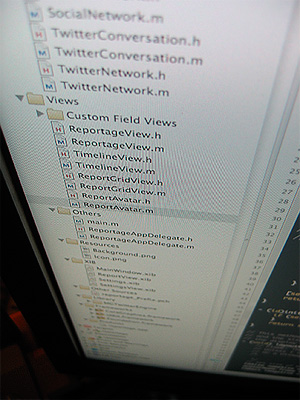
Source Code SnapshotSo what is version control? Simply put, it’s a way of keeping track of the changes made to files. It’s often impractical to make manual backups of a file before every set of changes to it, so version control systems like CVS and SVN emerged to help people — especially developers and programmers — keep track of their files, share changes with team members, and prevent stupid mistakes.

Accidentally deleted your code? Revert your changes. Came up with an ingenious way (that works) to do something? Commit your changes. Need to get the latest revision of all the files? Update the working copy.

Perhaps the most practical application of systems like Subversion is in team development. When three or more people are working on the same set of files, it’s useful to be able to merge the changes seamlessly, see the changes others have made, or even work separately on branches (kind of like forks) and tags (usually released versions that are being maintained).

I did write that I don’t claim to understand the fine details. If you really want to understand Subversion, I highly recommend this book by members of the development team: Version Control with Subversion, or the book online.

Let’s talk about how to use it. Hard-core programmers often choose to use the command line tools, where they type commands like svn up to update the files. Beginners will be glad to know that there are implementations with GUI‘s, like RapidSVN and TortoiseSVN. Eclipse users may use Subversive or Subclipse, “team providers” that let coders easily perform version control tasks inside the IDE.

Subversion tasks can be done in Windows Explorer

Subversion tasks can be done in Windows Explorer

Assuming that you’re using the command line binaries — which you can get from the Subversion site, and I recommend official CollabNet builds where possible — most of the basic tasks are rather easy.

Instead of right-clicking and picking options from a menu, tasks are done by typing commands.

First of all, a ‘repository’ is a hosted location containing all of the code, revisions and metadata. Often, one can access a repository via HTTP, as in the case of WordPress, which is found at http://core.svn.wordpress.org/ .

To ‘checkout’ a repository means to make a local copy (known as a ‘working copy’) of the contents. That’s what we have to do first when working with an established project: get the code from the repository.

To do so, type the following at an open shell (on Linux/Mac OS X) or command prompt: (don’t type the ‘$’ — that’s just what you should see at the start of every command line in Bash)

$ svn checkout http://core.svn.wordpress.org/trunk/ wordpress/

Windows users would do the same, but at a command prompt — again, without the dollar sign.

That command invokes the svn executable and tells it to checkout the WordPress trunk directory to the local folder wordpress.

Continue reading »

Tagged with:
 

Bing: the better way to Google

On June 27, 2009, in Video Matters, by Frederick

This is one of the most humorous videos I’ve seen in a while.

“…introducing Bing: the better way to Google”; also known as “the easiest way to Google since Yahoo!”

Please enable Javascript and Flash to view this Flash video.

via TechCrunch

Tagged with:
 

Browsers on Windows 7

On June 14, 2009, in Computer Matters, by Frederick

A few days ago I completely reinstalled the operating system on my computer in order to upgrade from the Windows 7 Beta to the Windows 7 Release Candidate. In doing so, I had to manually reinstall all of my applications, including the various browsers to which I am accustomed — Mozilla Firefox (3.5 Beta 4), Google Chrome (dev branch), and Safari 4 (now no longer beta) in addition to the built-in Internet Explorer 8, which I seldom use.

I am also accustomed to my taskbar being set in “Combine when taskbar is full” mode, which is a compromise between the dock-resembling Windows 7 taskbar and the older taskbar style with which XP and Vista users would be familiar. This looks something like this:

An alternative taskbar look for Windows 7

An alternative taskbar look for Windows 7

Today, I decided to see if I could get accustomed to the Windows 7 taskbar look, which involves taking out those labels and showing merely the icons. Screenshot by Paul Thurrott:

The default Windows 7 taskbar style

The default Windows 7 taskbar style

This is when I discovered something cool yet shocking about my browsers.

Firefox in the taskbar

Firefox in the taskbar

Mozilla Firefox is a nice browser; that’s why I use it most of the time. Google Chrome is lightweight, fast, and aesthetically pleasing; that’s why it’s my default browser.

But neither of them seem aware of Windows 7. Their browser icons are plainly represented in the taskbar, even when I’ve got multiple tabs open. In the screenshot to the right, Mozilla Firefox only gets one taskbar thumbnail when I mouse over the icon, even though I have 4 tabs open. The icon, too, doesn’t reveal anything about how many tabs are open.

Chrome has the same issue

Chrome has the same issue

With Google Chrome, the exact same thing happens. The thumbnail is one of the application, not the individual tabs open, so it would appear that Windows 7 isn’t aware of the individual tabs nor is Chrome taking advantage of the new taskbar.

Internet Explorer has no issue with this; as soon as more than one tab is opened, the taskbar reflects this change. Note: the same change occurs for Chrome and Firefox if multiple WINDOWS are opened.

Windows 7 recognizes tabs in Microsoft's browser

Windows 7 recognizes tabs in Microsoft's browser

The shocking thing is, Apple’s new browser takes advantage of the taskbar. Perhaps one expects this from a company that focuses on user experience and aesthetics. But this just makes Safari awesome.

The taskbar actually recognizes the individual tabs in Safari 4

The taskbar actually recognizes the individual tabs in Safari 4

You’ll notice that the thumbnails aren’t of the browser, but of the individual pages loaded in tabs. This means that I can click on a thumbnail to go directly to that tab — an excellent convenience, thanks to the Windows 7 taskbar.

I’m very surprised that Mozilla Firefox and Google Chrome, two of the most common browsers among people who are on the cutting edge of software technology, aren’t taking advantage of Windows 7′s new taskbar. After all, according to Wakoopa (which tracks software usage), Firefox and Chrome are the 1st and 3rd most used browsers on Windows. Come on, Mozilla developers, make your browser more Aero-aware and taskbar-aware! Even Chrome looks nicer on Aero Glass by default.

Chrome looks really attractive with an Aero Glass interface

Chrome looks really attractive with an Aero Glass interface

Taskbar thumbnails are really useful when the taskbar items don’t have labels and when the icons are combined. It’s no longer necessary to read the labels to determine which item to click on; I can just mouse over, quickly scan over the thumbnails, and click on the one I want. Kudos to the people at Microsoft who came up with this intuitive interface!

If you’re still on Windows XP — noting that it is nearly 8 years old — or on Vista, Windows 7 is a major step up in terms of the user interface. It might take a bit of adjusting, but in the end, I am certain you’ll like it.

Microsoft Store

Tagged with:
 

Yay for WordPress 2.8 Release Candidate

On June 7, 2009, in Uncategorized, by Frederick

Awesome! WordPress has just released the release candidate of WordPress 2.8, which seems to contain an awesome amount of improvements over WordPress 2.7 (most of them subtle and unexposed to the end user). I’ve been running the trunk version of WordPress for months now, and I have to say that WordPress 2.8 is stable and usable.

If you want to stay up-to-date with WordPress, you can try running it from SVN. I’ll post a little guide on how I do it soon.

Tagged with: